Overview
If you’re encountering crashes, freezes, or strange in-game behavior, we need your logs or crash reports to help troubleshoot. These logs contain the technical details that help us identify the cause of the problem.
Sending us these files is the fastest way to get support.
Guide
- Open the Instance Folder
a. Open the Modrinth instance you are experiencing issues with.
b. Press the button with three dots and select “Open folder”
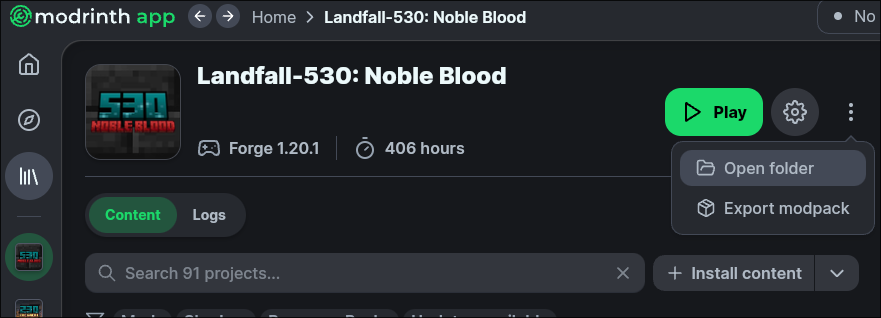
- Locate the Relevant Logs
- Usually, we need a
latest.logfile to investigate most issues. Additionally, if your game crashed, acrash-reportis very valuable and often points directly to the cause.
a. Locatinglatest.log: Navigate to the folder titledlogsinside the folder opened in step 1. Locate and send uslatest.log
b. Locating a crash report: Navigate to the folder titledcrash-reportsinside the folder opened in step 1. Open the most recent file (they’re timestamped) and include it when sending us logs.
What NOT to Send
- Screenshots of logs (we will cry)
- Only part of the log
- Logs from a different date than your crash
If Possible: Reproduce the Crash, Then Send Logs
If you’re able, reproduce the crash and then send the logs right after. That way we can be sure we’re looking at the right issue.